iPhone · iPad · Mac

Your all-in-one PDF workspace

Edit, scan, sign, organize and convert your documents — 21 tools in one native app that runs entirely on your device. No account, no cloud, no analytics.

Coming Soon See all 21 tools
  • 100% on-device
  • 21 tools
  • One app, three platforms

iOS 26.2 or later · iPadOS 26.2 or later · macOS 26.2 or later

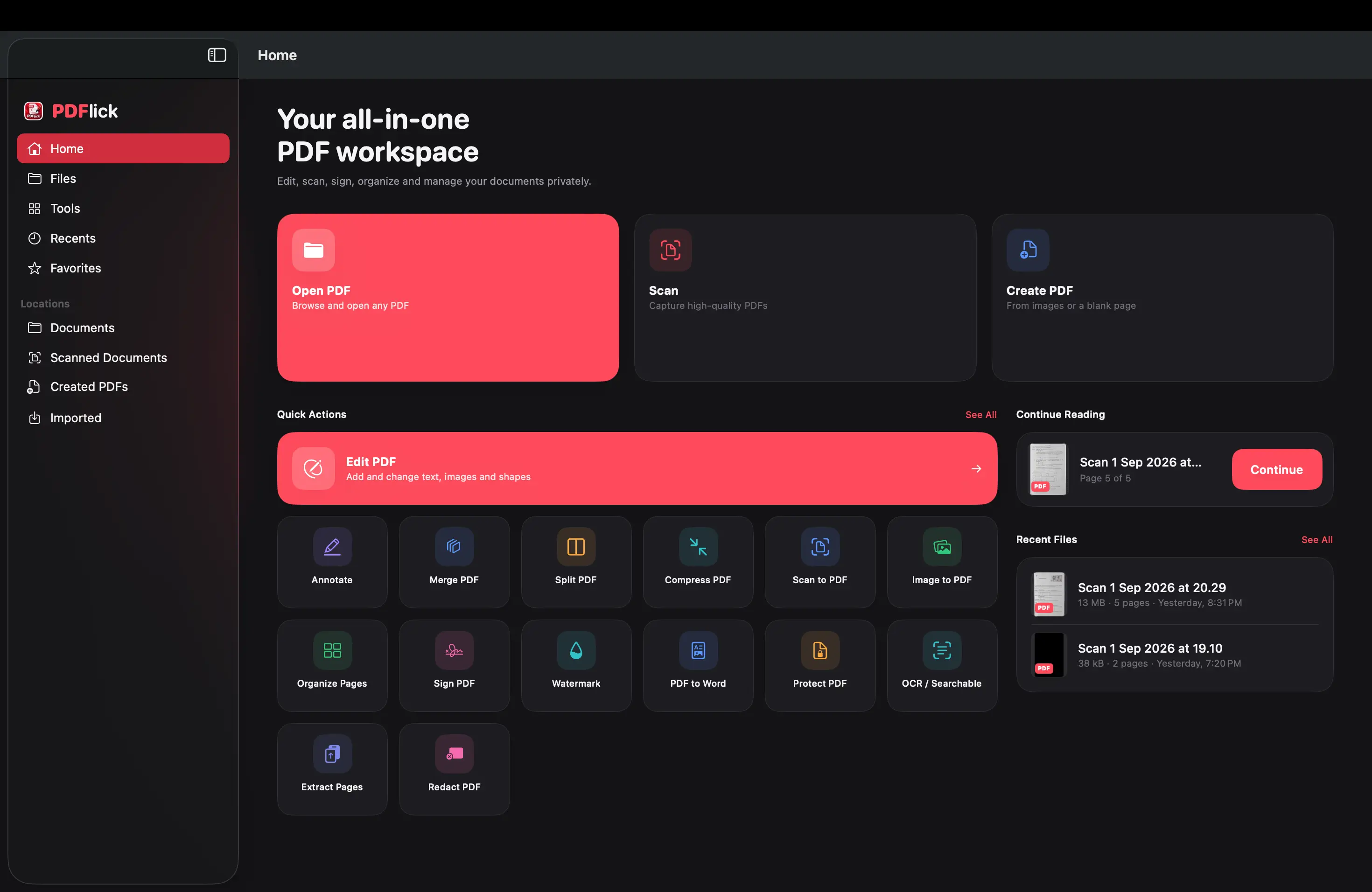
PDFlick editing a PDF on macOS, with the annotation toolbar and page thumbnails visible
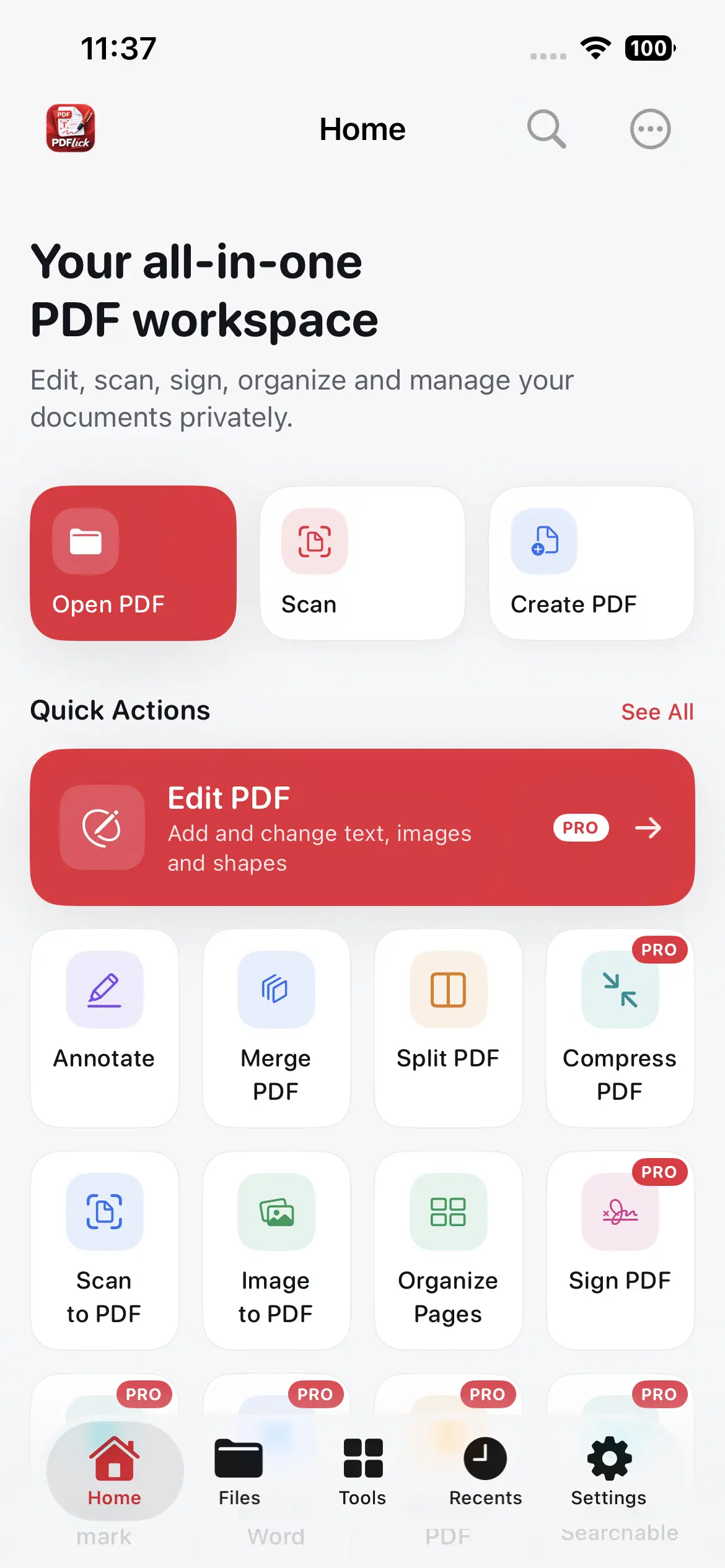
PDFlick tool grid on iPhone showing edit, scan, sign and organize tools

Why PDFlick

One app that does the whole job

Most PDF apps make you choose: a beautiful reader that can’t edit, a capable editor that looks like it was ported from Windows in 2011, or a free tool that uploads your bank statements to somebody’s server.

  • Nothing leaves your device

    No account, no cloud, no analytics, no upload. Every page is processed locally on the hardware in your hand.

  • 21 tools, one app

    Edit, annotate, sign, merge, split, compress, convert, protect, redact and scan — without juggling four subscriptions.

  • Genuinely native on both

    Not an iPad app in a window. Real keyboard shortcuts, hover states, right-click menus and cursors on the Mac.

  • Vector-true output

    Pages are re-emitted as vectors, never flattened to pictures. Text stays sharp, selectable and searchable.

  • Your phone is the Mac’s scanner

    Pair over Wi-Fi, watch the phone’s viewfinder live on the Mac, and pages arrive as you shoot them.

  • Built to stay smooth

    Heavy PDF work runs on a dedicated background actor, so rendering, OCR and encoding never block the interface.

Features worth calling out

The parts other PDF apps get wrong

The editor

A real editor, not a sticker album

Tap a line of the document’s own text and edit it in place. PDFlick matches the original’s font, size, weight, colour and leading, covers the old run in the page’s own sampled background colour, and reflows the replacement exactly where it sat.

  • Style a single word bold, italic, underlined or coloured without touching the rest of the sentence
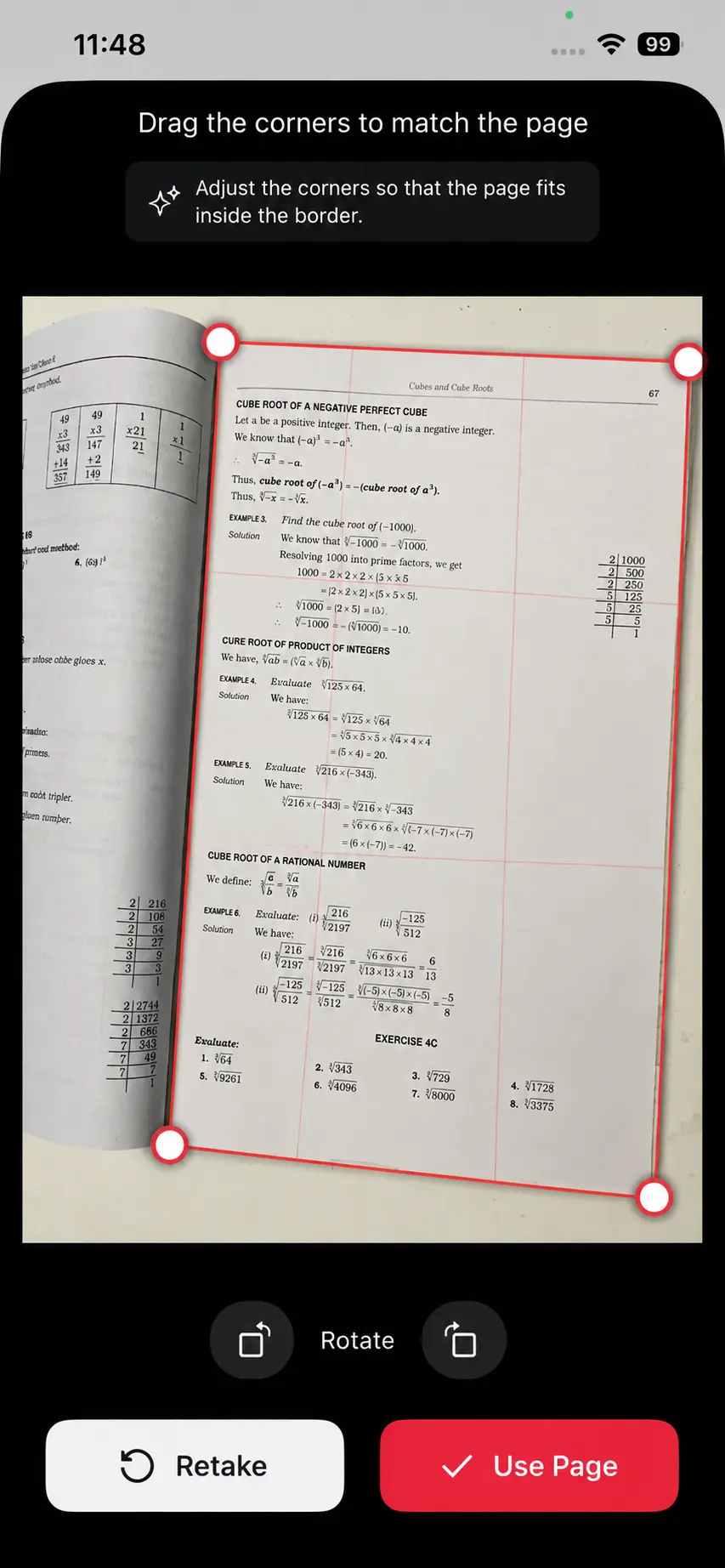
  • Scanned a book page? Tap Read Text and on-device OCR recognizes the words so you can replace them anyway
  • Add and change images and shapes alongside the text
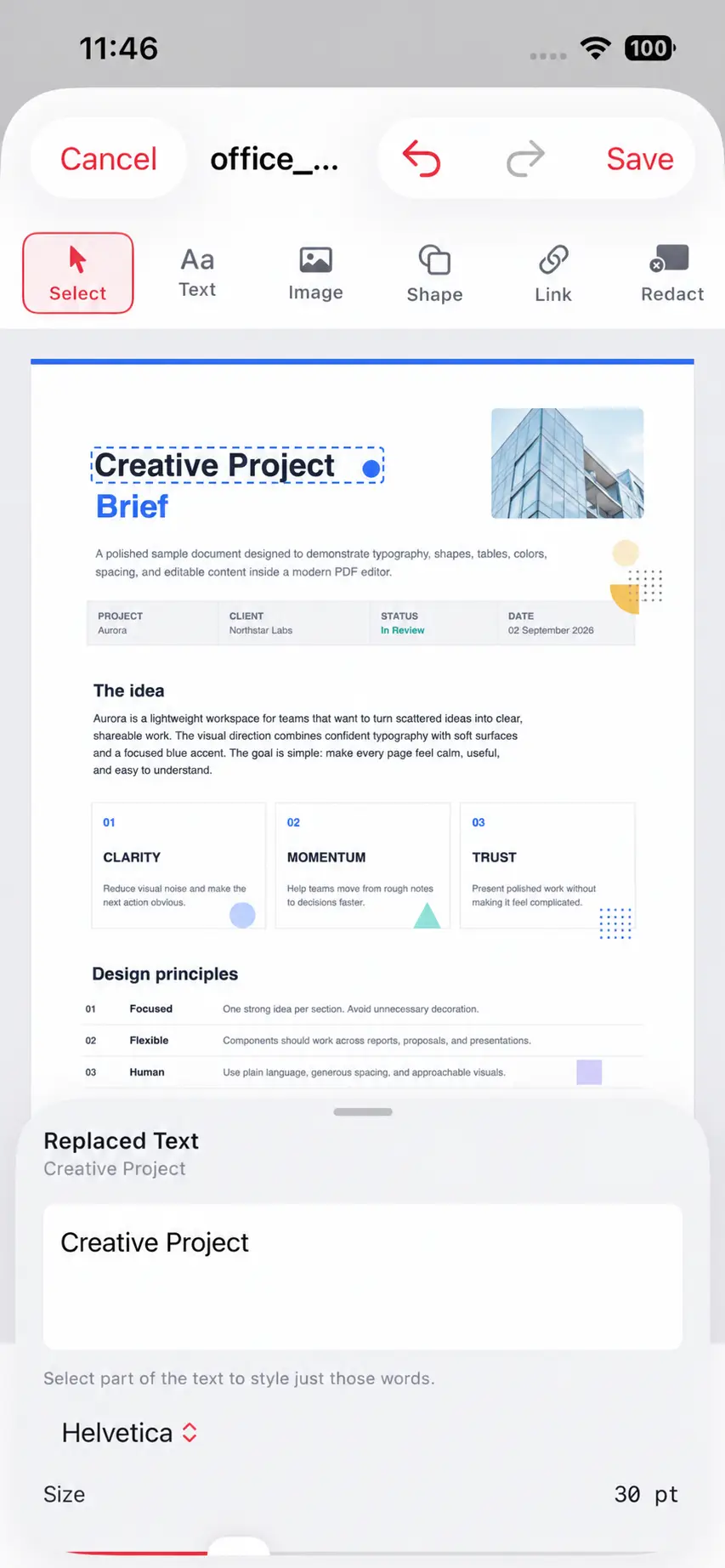
Editing a line of text directly inside a PDF on iPhone, with PDFlick matching the original font and style

Markup

Markup that behaves

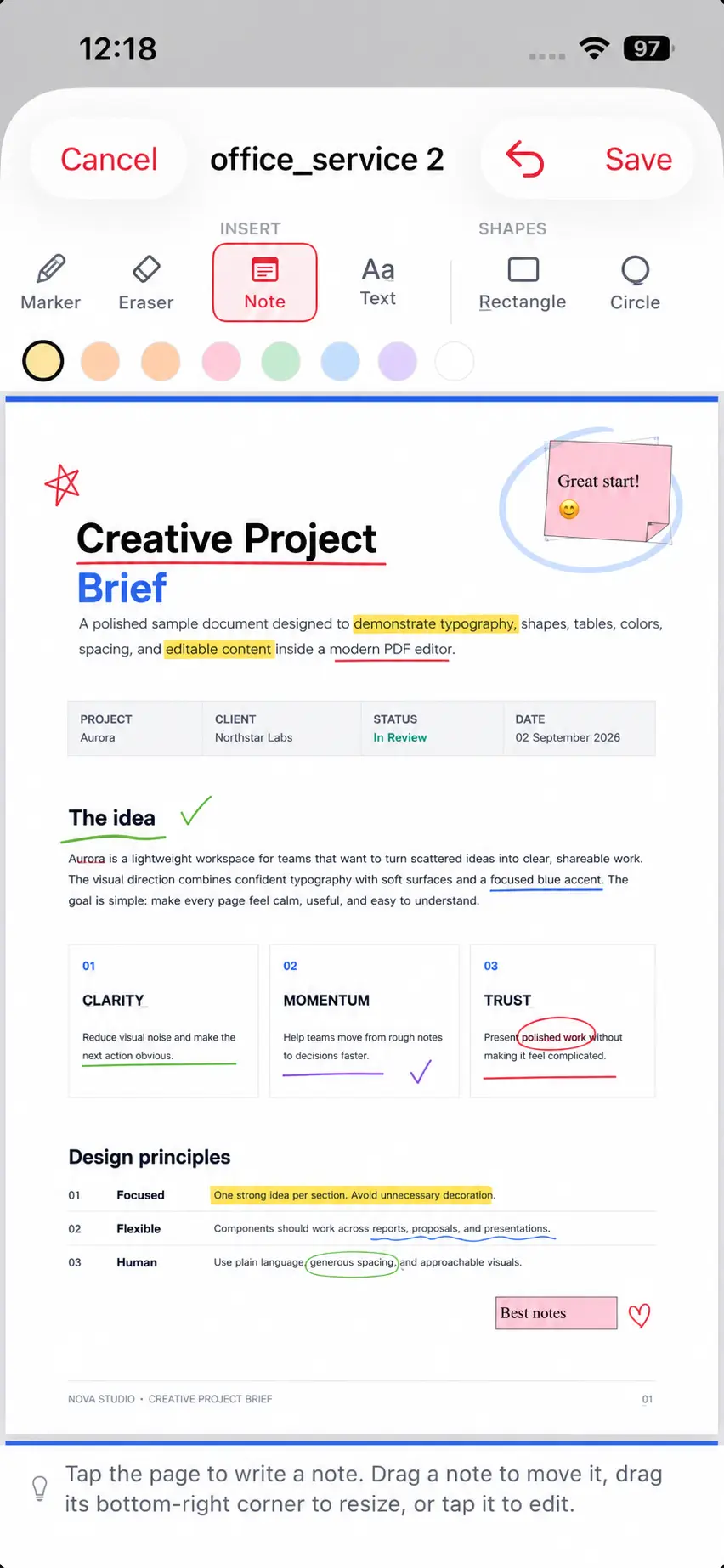
Highlight, underline and strike work on real text selections, snapped out to whole words — so a clipped drag never marks up half a word.

  • Pen and marker draw under your finger in real time
  • Sticky notes are visible cards you can drag, resize by the corner and recolour
  • Never a pin that hides its own contents
PDFlick annotation tools on iPhone highlighting text on a document page

Watermarks

Watermarks you can actually judge

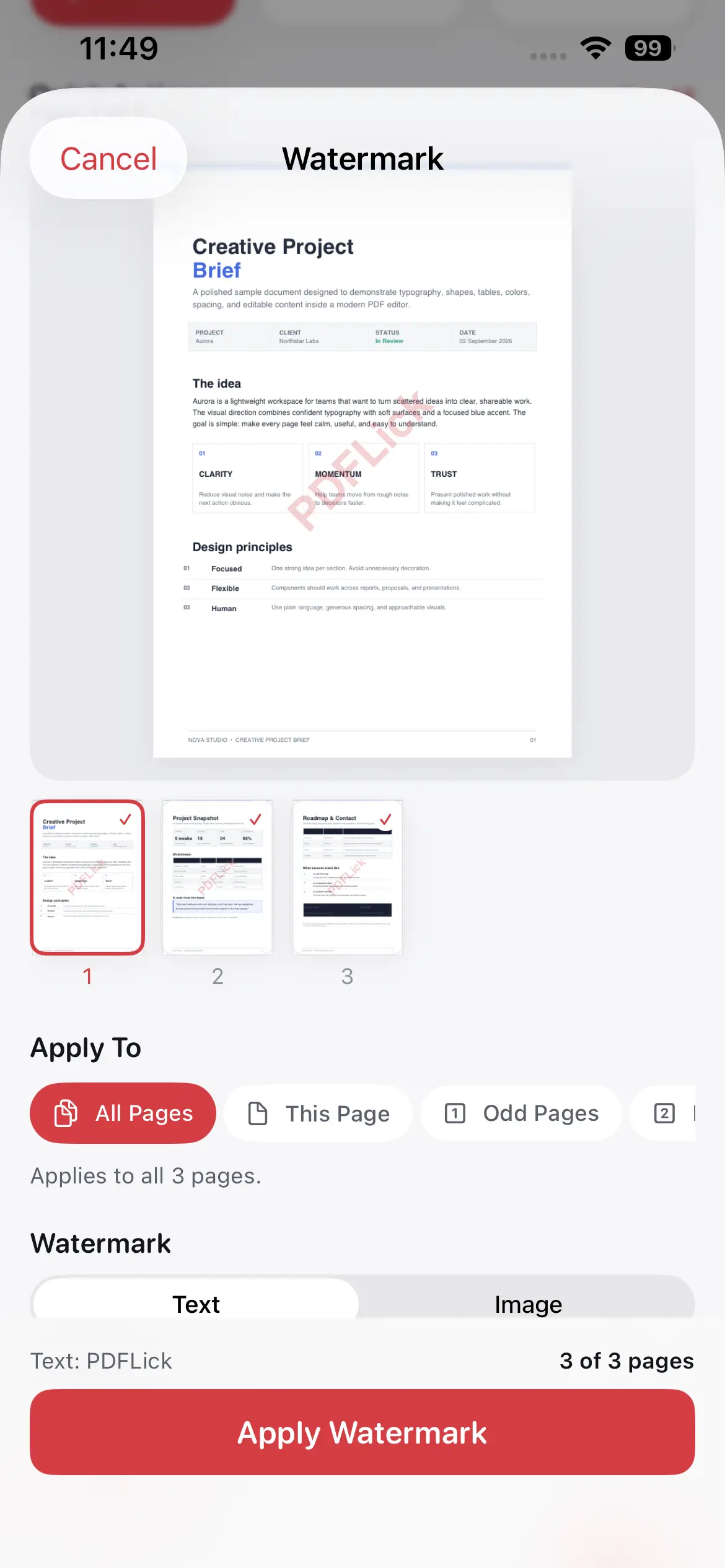
A live preview of every page, not just page one — because a stamp that clears the cover can land squarely on a heading further in.

  • Apply to all pages, the current page, odd, even, or a custom range like 1-5, 8, 10-12
  • Drag the watermark on the preview to place it exactly
  • Stamp text or your own logo
Watermark preview on iPhone showing page range options and a positioned watermark in PDFlick

On the Mac

Built for a desk, not just a thumb

On macOS, editing and markup open on a large canvas with real desktop manners.

  • Bare-key tools — H highlight · U underline · S strike · P pen · M marker · E eraser · N note · T text
  • ⌘B bold · ⌘I italic · ⌘U underline · ⌘D duplicate · ⌘Z undo · ⌘S save
  • Right-click to delete any annotation, and Reveal in Finder straight after saving
PDFlick on macOS with a large editing canvas, sidebar and desktop toolbar

The toolbox

21 PDF tools, all on device

Home, the Tools screen, the Mac sidebar and search all generate from one list — a tool can never appear in one place and be missing from another. Open any tool for a full guide.

On redaction: covering text with a black box is not redaction. PDFlick’s Redact tool removes the content. Everything else — highlights, covers, replacements — leaves the original underneath, and the app says so where it matters.

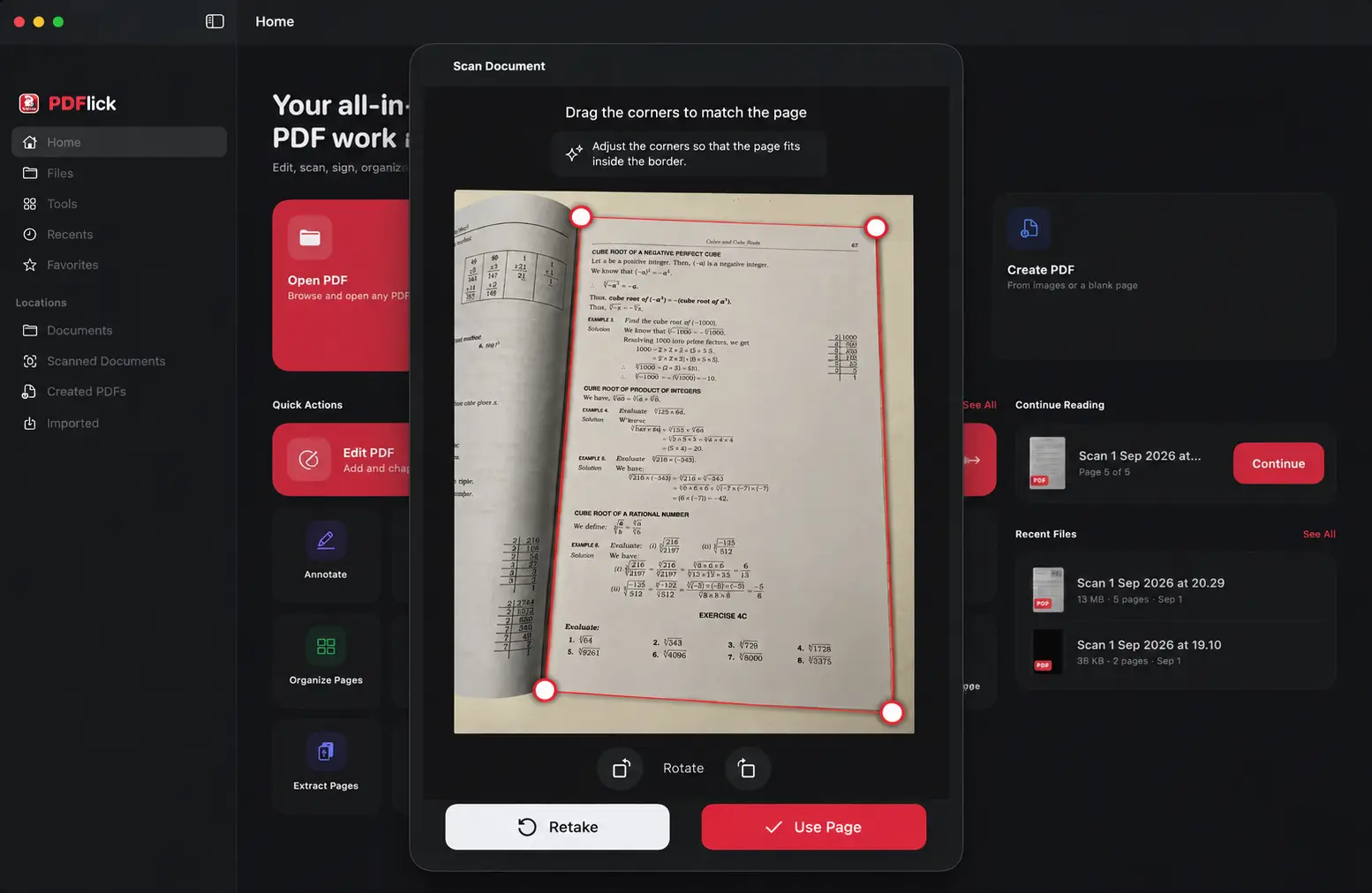
Continuity Scan

Your iPhone is the Mac’s scanner

The Mac shows the connected device by name, asks before accepting, and displays the phone’s camera live while you frame the page. Auto-capture is a switch, not a surprise — off by default, and it waits until the page is genuinely still.

  1. Pair over Wi-Fi

    Put both devices on the same network. No Apple Account, no cloud, no cable.

  2. Frame it on the Mac

    The Mac mirrors the phone’s viewfinder live at 6 fps, so you see what the phone sees.

  3. Pages land as you shoot

    Each capture is sent straight into the review on the Mac, ready to crop, filter and save.

🤝 Peer-to-peer over your own network · encryption required · the Mac must accept each connection by hand.

A Mac showing the live viewfinder from a paired iPhone while scanning a document into PDFlick
PDFlick on iPhone capturing a document page with the camera

Privacy

PDFlick has no server

Not “we don’t sell your data” — there is no pipe out. Every page you open is processed by the device in front of you.

  • No cloud, no account, no analytics

    Documents never leave the device. There is nothing to sign in to and nothing to opt out of.

  • The narrowest entitlements that work

    Sandboxed with camera, user-selected files, photo library, printing, and local networking only for the iPhone ↔ Mac link.

  • Device-to-device only

    The scanner link is peer-to-peer over your own network, encryption required, accepted by hand on the Mac.

  • On-device intelligence

    OCR, document detection and text recognition all run locally through Apple’s Vision framework.

Read the full Privacy Policy →

FAQ

Questions people actually ask

Does PDFlick upload my documents to a server?

No. PDFlick has no server. Every page is processed on your iPhone, iPad or Mac — there is no account to create, no cloud sync, and no analytics. Your documents never leave the device.

Can PDFlick edit the text that is already in a PDF?

Yes. Tap a line of the document’s own text and edit it in place. PDFlick matches the original font, size, weight, colour and leading, covers the old run in the page’s own sampled background colour, and reflows the replacement exactly where it sat.

What about scanned pages that have no real text?

A photo has no text in it to edit — the words are part of the image. Tap Read Text and PDFlick recognizes them on device using Vision, so you can replace them anyway.

How does using my iPhone as the Mac’s scanner work?

Put both devices on the same Wi-Fi network and pair them. The Mac shows the phone’s viewfinder live at 6 fps and pages land straight in the review as you shoot. It is peer-to-peer over your own network with encryption required — no Apple Account and no cloud involved. The Mac must accept each connection by hand.

Is PDFlick’s redaction real redaction?

Yes. Covering text with a black box is not redaction. PDFlick’s Redact tool removes the underlying content. Everything else — highlights, covers, replacements — leaves the original underneath, and the app tells you so where it matters.

Does editing a PDF make the text blurry?

No. Pages are re-emitted as vectors rather than flattened to pictures, so a watermarked or edited document stays as sharp, selectable and searchable as its source.

Is the Mac version just the iPad app in a window?

No. The Mac build has real desktop manners — bare-key tool shortcuts, ⌘B/⌘I/⌘U text styling, right-click to delete an annotation, context-appropriate cursors, and Reveal in Finder.

What do I need to run PDFlick?

iOS or iPadOS 26.2 or later, or macOS 26.2 or later. One purchase covers iPhone, iPad and Mac.

Get the whole toolbox

21 tools for iPhone, iPad and Mac. Everything runs on your device — there is no account to make and nothing to upload.

Coming Soon Questions? Talk to us

iOS 26.2 or later · iPadOS 26.2 or later · macOS 26.2 or later